
Subscriptions
Learn about the paid subscription plans in DataPicta.
Free vs Paid Subscriptions
If you want to publish charts to the web you have two options
- Publish your charts for free, published charts will contain a subtle link under the chart that says "Created with DataPicta". That link will take users to the DataPicta app where they can view your chart, make changes for themselves, and create their own charts. With this link you support the platform and help us to keep it free for everyone.
- Upgrade to a paid subscription plan, with a paid subscription you can publish charts without the link. This is ideal for businesses and professionals who want to share their charts without any branding. Please see our pricing page for more details on the different subscription plans we offer.
A chart with a free subscription
Note the "Created with DataPicta" link under the chart.
A chart with a paid subscription
Note the absence of the "Created with DataPicta" link under the chart.
Buy a Subscription
To buy a subscription you need to be a registered user, if you don't have an account yet, you can go to the DataPicta app and click on the user icon to create an account. Once you have an account, you can buy a subscription from the pricing page.
On the pricing page you will see the prices in Euros or US Dollars depending on your location. Once you select billing cycle and a subscription plan, you will be taken to the checkout page. On the checkout page you might see a different currency depending on your location, this is the converted price in your local currency according to the current exchange rate.
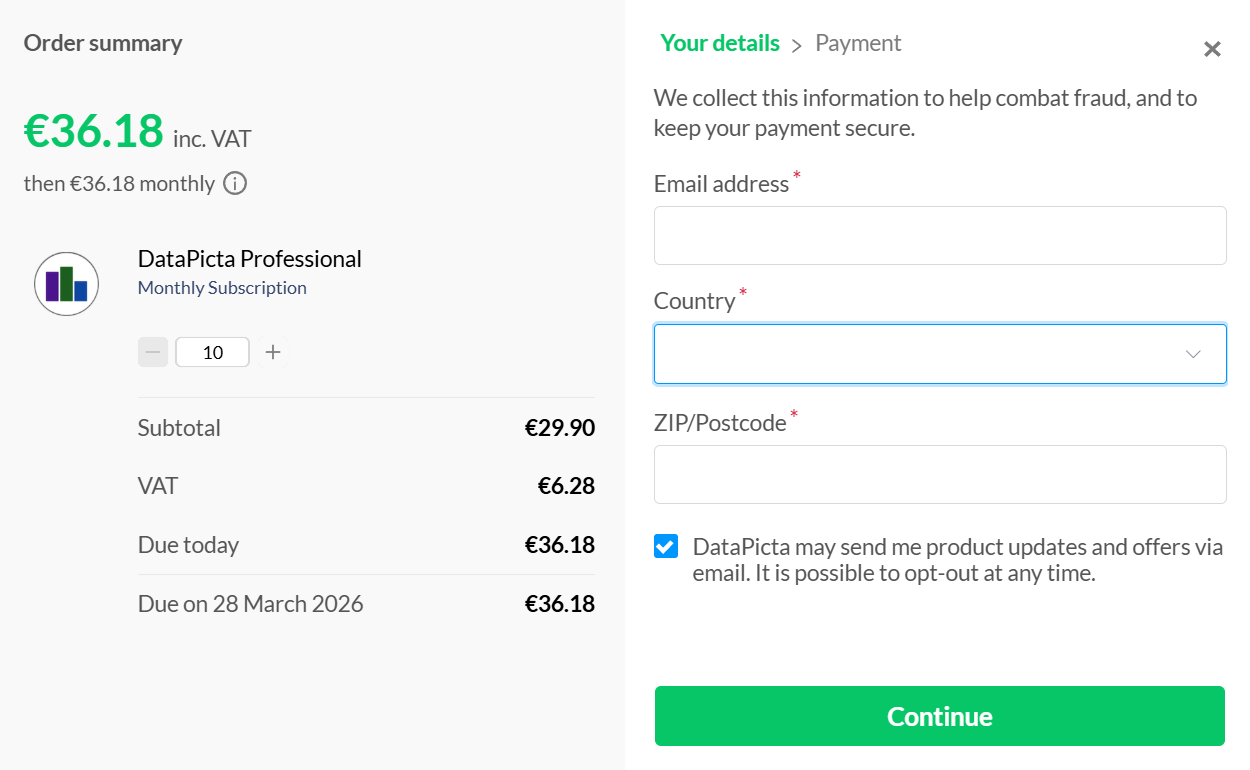
Every subscription plan comes with a minimum number of charts you can publish, if you want to publish more charts than the limit of your subscription plan, you can increase the number in this step. You can also change this later. Depending on your jurisdiction, VAT or sales tax will be added to the price. After you fill in your email, country and ZIP/Postcode and you can continue to the next step.
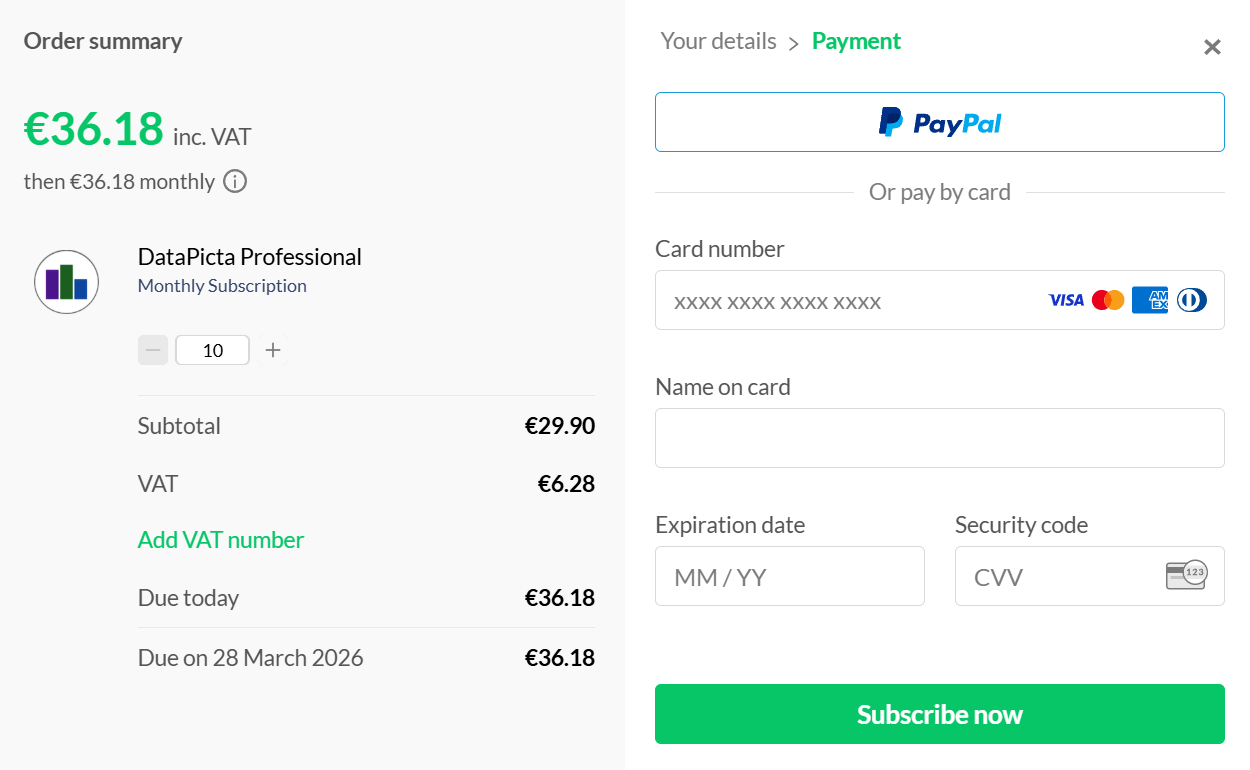
In this step you can fill in your payment details, different payment methods are available depending on your location. After you fill in your payment details and click on the "Subscribe now" button your payment will be processed. If successful, your subscription will be activated within a minute or two and you can start publishing charts without the "Created with DataPicta" link.
View your subscription details
You can view how many charts you can publish with your subscription and how many you already published. To view your subscription details click on the user icon in the top right corner of the app.
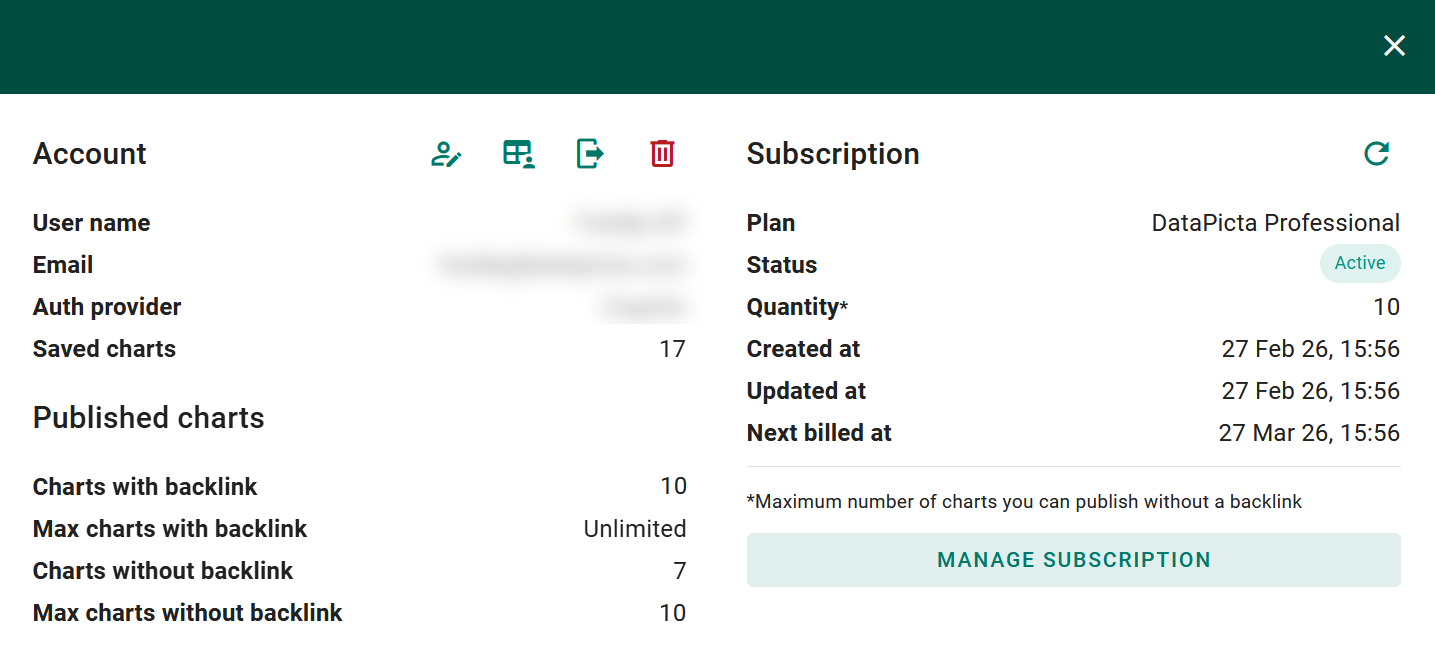
On the left side, under "Account" you can see how many charts you saved, a saved chart is private and only visible to you and your team members if you created a team. Under "Published charts" you can see how many charts you published with a backlink and without a backlink, and how many you may publish in total with your subscription.
On the right side, under "Subscription" you can see your current subscription plan, its status, the maximum number of charts you can publish without a backlink and the next billing date. If you have multiple subscriptions, you will see multiple rows of information. In most cases you will only have one subscription, if you see more than one subscription and you don't know why, please contact our support team.
You also see a "Manage subscription" button, this button will take you to the subscription management page where you can change your subscription plan, which is described in the next sections.
Upgrade or downgrade your subscription
With every subscription plan you can increase or decrease the number of charts you can publish without a backlink, every plan comes with a minimum number of charts you can publish, but you can increase the number indefinitely. But at some point it might be more cost effective to switch to a different subscription plan. For example, if you are on the "Professional" plan and you want to publish more than 100 charts, it might be more cost effective to switch to the "Business" plan instead of increasing the number of charts in the "Professional" plan.
Change the number of charts you can publish
We are currently working on a new subscription management page where you can easily change the number of charts you can publish without a backlink. In the meantime, if you want to change the number of charts you can publish without a backlink, please contact our support team and we will be happy to help you with that.
Change the subscription plan
If you want to change your subscription plan, you should buy a new subscription plan from the pricing page. After you bought the new subscription plan, you can safely cancel your old subscription plan from the subscription management page. It is advised to switch to a new subscription plan at the end of your current billing cycle, to avoid being charged for two subscription plans at the same time.
Change the billing cycle
A billing cycle is the frequency at which you are charged for your subscription. We offer monthly and yearly billing cycles, if you want to change you billing cycle, you should buy a new subscription plan with the desired billing cycle from the pricing page. After you bought the new subscription plan, you can safely cancel your old subscription plan from the subscription management page. It is advised to switch to a new subscription plan at the end of your current billing cycle, to avoid being charged for two subscription plans at the same time.
Manage your subscription
When you click on the user icon in the top right corner of the app and then click on the "Manage subscription" button, you will be taken to the subscription management page. On this page you can see all your active subscriptions and manage the following aspects of your subscription:
- Update your payment method
- View or download your invoices as PDF (They are also sent to you by email)
- Change your billing information
- Cancel a subscription
Contact support
If you have any questions about our subscription plans or if you need help with managing your subscription, please don't hesitate to contact our support team. We are here to help you and we will do our best to answer your questions and resolve any issues you might have.