Save and Publish
Learn about saving and publishing charts in DataPicta.
You need an account to save and publish your charts in DataPicta. Creating an account is free and allows you to securely store your visualizations in the cloud.
Saving a chart stores it in your DataPicta account. You can access your saved charts from any device by logging into your account. This is useful for keeping your work organized and easily retrievable.
Publishing a chart makes it publicly accessible. When you publish a chart, it generates a unique URL that you can share with others. Published charts can be embedded in websites or shared on social media. The "Publish dialog" has a purple theme.
Environments
DataPicta uses environments to separate your personal charts from team charts. Every account has a private environment where you can save and publish your own charts. If you are a member of a team, you also have access to that team's environment.
To switch between environments, open the Save dialog and click the three-dot button in the top-left corner. A menu will appear showing your private environment and any teams you are a member of. Select the environment you want to use. The dialog will remember your last-used environment the next time you open it.
The top bar of the Save dialog shows "My charts" when you are in your private environment, or the team name when you are in a team environment.
Saving, loading, organizing, and publishing charts works the same way in any environment.
Saving a Chart
To save a chart you can click the "Save" icon in the top-right corner of the application, the icon looks like a floppy disk. You will also find a "Save" option in the menu. If you are not logged in the icon is greyed out meaning you cannot save until you log in or create an account.
The chart is saved in whichever environment is currently selected (private or team).
The Save Dialog
When you click the "Save" icon or menu option, a dialog will appear showing you all the charts and folders in the current environment. You can choose to save the current chart in an existing folder or create a new folder for better organization. You must provide a name for the chart before saving. Once you have selected the folder and entered a name, click the "Save" button to store your chart in your account. The "Save dialog" has a blue theme.
Loading a Chart
To load a previously saved chart, click the "Maps" icon in the top-right corner of the application. The same dialog as the save dialog will appear, showing you all your saved charts and folders in the current environment. The save button is replaced with a open button. Select the chart you want to load and click the "Open" button. Alternatively, you can double-click the chart to load it directly.
Organizing Charts
In the top bar of the save/load dialog, you will find 6 icons that help you manage your charts and folders.
Sort
If you have many charts and folders you can sort them by name, date or size. All options can be sorted in ascending or descending order. If there are folders they are always shown first.
View
Chart and folders can be viewed in two ways, as a list or as a grid with thumbnails. The grid view shows a small preview of each chart which can help you find the right chart faster, the grid is also the default view. The list view does not show previews but takes less space so you can see more charts at once.
New Folder
You can create a new folder to organize your charts better. Click the "New Folder" icon, enter a name for the folder, and click "Ok". The new folder will appear in the current folder. By double-clicking a folder you can enter it and save or load charts inside it. Use the breadcrumb navigation at the top-left of the dialog to move back to a parent folder, alternatively you can use the "backspace" button on your keyboard to go back to the parent folder.
Move
If you want to move a chart to another folder, select the chart by clicking on it once, then click the "Move" icon (an arrow). A dialog will appear allowing you to choose the destination folder. Select the desired folder and click "Move" to relocate the chart.
You can also move multiple charts and folders at once by selecting them while holding the "Ctrl" key (or "Cmd" key on Mac) and then clicking the "Move" icon.
Rename
If you want to rename a chart or folder, select it by clicking on it once, then click the "Rename" icon (a pencil). A dialog will appear where you can enter the new name. After typing the new name, click "Ok" to apply the change.
Delete
To delete a chart or folder, select it by clicking on it once, then click the "Delete" icon (a trash can). A confirmation dialog will appear to prevent accidental deletions. If you are sure you want to delete the selected item, click "Delete" in the confirmation dialog.
If you delete a chart the chart is moved to the trash folder, from where it can be restored later. If this is the first time you delete a chart a trash folder is created automatically at the root level.
You can select multiple charts to delete by holding the "Ctrl" key (or "Cmd" key on Mac) while clicking on the items you want to delete.
You can only delete folders that are empty. If you try to delete a folder that contains charts or other folders the trash icon will be grayed out.
You can not delete charts that are published. To delete a published chart you must first unpublish it.
If you delete charts in the trash folder they are permanently deleted and cannot be restored.
Searching Charts
On top of the save/load dialog you will find a search field. You can use this field to search for charts and folders by name. As you type, the list of charts and folders will be filtered to show only those that match your search query. This makes it easier to find specific charts, especially if you have a large number of saved visualizations.
Teams
You can create teams in DataPicta to collaborate with others. The creator of a team is the owner and the only one who can rename or delete the team. A team can have multiple admins and members. Users can be members or admins of multiple teams.
The following table shows what each role can do in a team environment:
| Action | Member | Admin | Owner |
|---|---|---|---|
| Save chart | ✔ | ✔ | ✔ |
| Open chart | ✔ | ✔ | ✔ |
| Rename chart | ✔ | ✔ | ✔ |
| Remove unpublished chart | ✔ | ✔ | ✔ |
| Create folder | ✔ | ✔ | ✔ |
| Remove empty folder | ✔ | ✔ | ✔ |
| Publish chart | ✔ | ✔ | ✔ |
| Add member | ✔ | ✔ | |
| Remove member | ✔ | ✔ | |
| Unpublish chart | ✔ | ✔ | |
| Add admin | ✔ | ||
| Remove admin | ✔ | ||
| Rename team | ✔ | ||
| Delete team | ✔ |
Publishing a Chart
After saving a chart, you can publish it by clicking the "Publish" icon next to the "Open" icon in the bottom-right corner of the dialog. Publishing works the same way in any environment — you can publish charts from your private environment or from a team environment.
The Publish Dialog
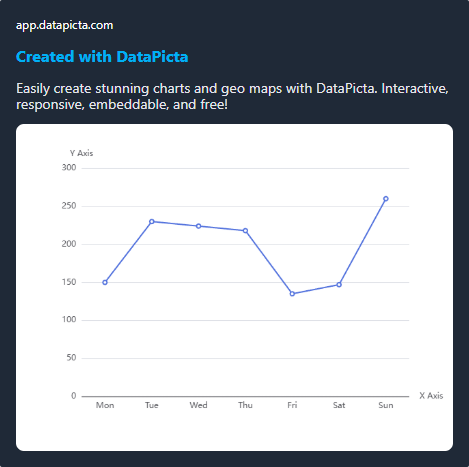
After clicking the "Publish" button, a new dialog will appear. Your chart will be published immediately which usually takes just a few seconds. Once the chart is published, the dialog will show you the chart itself on the left side and sharing options on the right side. The "Publish dialog" has a purple theme.
Chart Preview
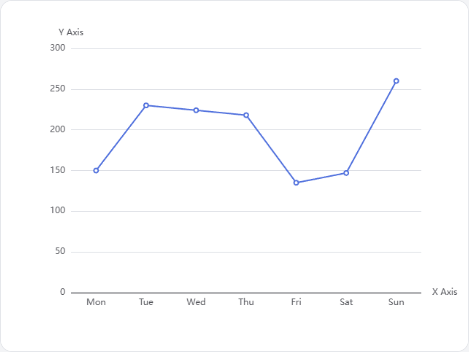
The chart preview is an iframe, this is different from the chart in the main application and proves that the published chart is working correctly. On the left side you will find several options to share your published chart:
Sharing Options
- Embed with HTML: This option provides you with an HTML iframe code snippet that you can copy and paste into your website or blog to embed the published chart directly on your page.
- Embed with Url: This option gives you the URL of where the chart is actually hosted, you can use this URL on platforms that support embedding via URL (oEmbed protocol).
- Social Media: This option gives the URL of the published chart that you can share on social media platforms like Facebook, X/Twitter, or LinkedIn (open graph protocol). Simply copy the URL and paste it into your social media post to share your visualization with your followers. Depending on the platform, a preview of the chart is shown. You may also write a title or description to go along with the link.
- Email: This option allows you to share the published chart via email or any other messaging platform. It provides a URL that will open the chart inside the DataPicta application allowing the recipient to see and edit the chart directly. You can use this option to collaborate with others or simply share your work.
Managing Published Charts
- SEO: You can set a title and description for your published chart to improve its visibility in search engines. The title and description will be used as meta tags when the chart is shared, meta tags help search engines understand the content of your chart and can improve its ranking in search results, it does not change anything inside the chart itself.
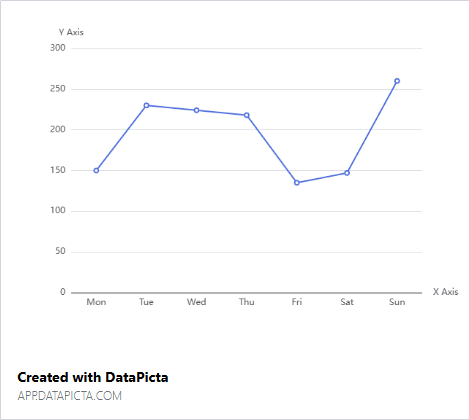
- Backlink: Whether your published chart includes a backlink to DataPicta depends on your subscription:
- Free — Private charts are published with a backlink. Charts in your teams are also published with a backlink.
- Professional — Private charts are published without a backlink. Charts in your teams are published with a backlink.
- Team — Private charts are published without a backlink. Charts in your teams are also published without a backlink.
If your subscription allows you to publish without a backlink, the backlink is off by default. You can toggle it on or off at any time. If your subscription does not allow it, the toggle will show an error.
If you are a member of a team created by someone with a Team subscription, you also publish without a backlink in that team environment.
If you upgrade from a Free subscription to a Professional or Team subscription, you can go back to your previously published charts and remove their backlinks using this toggle. - Unpublish: If you no longer want your chart to be publicly accessible, you can unpublish it by clicking the "Unpublish" button in the publish dialog. This will remove the chart from public view, be aware that unpublishing will remove the sharing options and the unique URL will no longer work. Only do this if you have taken the chart offline and no longer wish to share it. You can republish the chart later but the sharing options will change.
Embedding on Websites and Platforms
DataPicta makes it easy to embed your charts on your website — usually, it's a simple copy-paste job. Below, you'll find instructions for some popular platforms. Other platforms work in a similar way.
Within DataPicta, go to the chart you want to embed and click the Publish button. After a few seconds, you will see the embed code. Copy this code to your clipboard and insert it on your web platform, usually by pasting it into an HTML or embed block — different platforms have different names for this. Below are instructions for some popular platforms.
Wix
- Login to your Wix dashboard.
- Go to the page where you want to embed the chart.
- Click on the Add button (the plus icon).
- Select HTML Code from the menu.
- Click Edit HTML
- Paste the embed code you copied from DataPicta into the HTML editor.
- Click on Save.
- You may want to adjust the size or alignment of the HTML box.
- If everything looks good, click on Publish to publish your changes.
SquareSpace
- Login to your SquareSpace dashboard.
- Go to the page where you want to embed the chart.
- Click on the Edit button.
- Click on the + Block button to add a new block.
- Search for Embed and select it.
- Double-click on the Embed block to open the settings.
- In the Embed block settings, choose for Embed as Code Snippet.
- Click on Embed data
- Paste the embed code you copied from DataPicta into the code editor.
- Your chart appears in the preview.
- Click Back to return to the page editor.
- If everything looks good, click on Save to save your changes.
Shopify
- Login to your Shopify Admin site.
- Go to the page or blog where you want to embed the chart.
- In the content editor, click on the Show HTML button (it looks like
</>). - Paste the embed code you copied from DataPicta into the HTML editor.
- Click on the Show HTML button again to return to the visual editor.
- If everything looks good, click on Save to save your changes.
WordPress
- Login to your WordPress admin panel.
- Click on All Posts or All Pages.
- Find the post or page you want to edit and click on it.
- Type / to add a new block.
- Search for Custom HTML and select it.
- Paste the embed code you copied from DataPicta into the Custom HTML block.
- Click on Preview to see how it looks.
- If everything looks good, click on Save to save your changes.
Drupal
- Login to your Drupal admin panel.
- Go to the page or article where you want to embed the chart.
- Click on Edit.
- Just below the content editor, click on the Text Format dropdown and select Full HTML.
- Click on the Source button in the content editor toolbar.
- Paste the embed code you copied from DataPicta into the source editor.
- Click on the Source button again to return to the visual editor.
- If everything looks good, click on Save to save your changes.
Medium
Medium does not support embedding custom HTML code directly. However, they do support the oEmbed protocol. That means you only need to provide an embed URL. In DataPicta, after clicking the Publish button, copy the Embed URL instead of the embed code. In Medium you can then simply paste this URL into your article, and Medium will automatically convert it into an embedded chart.
Notion
Notion does not support embedding custom HTML code directly. However, Notion does support the oEmbed protocol. That means you only need to provide an embed URL. In DataPicta, after clicking the Publish button, copy the Embed URL instead of the embed code. In Notion, type /embed and then paste the URL into the popup. Notion will automatically convert it into an embedded chart.
SharePoint
You can embed DataPicta charts in SharePoint after the SharePoint administrator has approved DataPicta as a trusted party for embeds. Once that is done, you can use the Embed web part to add the embed code from DataPicta.
Approve domain
The administrator needs to go to the SharePoint site settings and click HTML Field Security, then add cdn.datapicta.com to the list of allowed domains. Instead of configuring this at the site level, it can also be configured at the tenant level to allow embedding on all SharePoint sites within the organization.
Add Embed web part
- Go to the SharePoint page where you want to embed the chart.
- Click on Edit.
- Click on the + button to add a new web part.
- Search for Embed and select it.
- In the Embed web part settings, choose for Embed code.
- Paste the embed code you copied from DataPicta into the code editor*.
- Your chart appears in the preview.
- If everything looks good, click on Republish to publish your chart.
* If you see an error message you might need to remove the height and width from the style tag (not the height and width tags itself), although the error message suggests something else this solved the issue in our tests.
Social Media
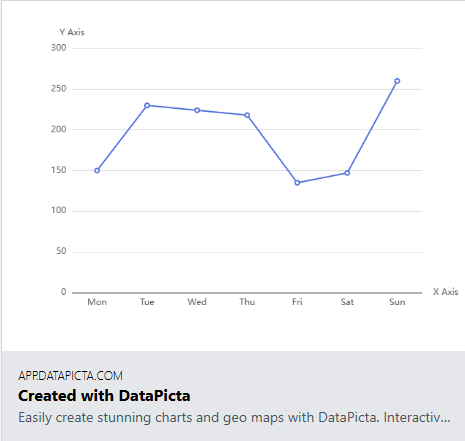
Social media platforms do not support embedding custom HTML, however most of them do support the Open Graph protocol. This means that if you share the social media link of your published chart, the platform will automatically generate a preview with a thumbnail image of your chart.
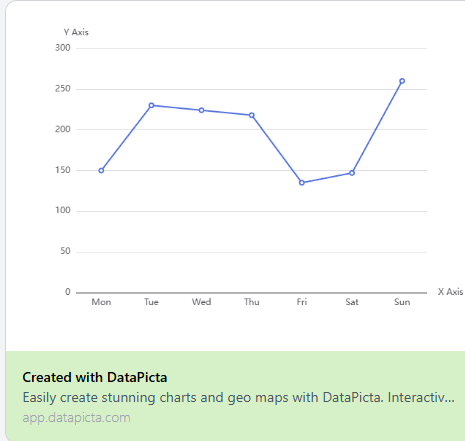
X/Twitter
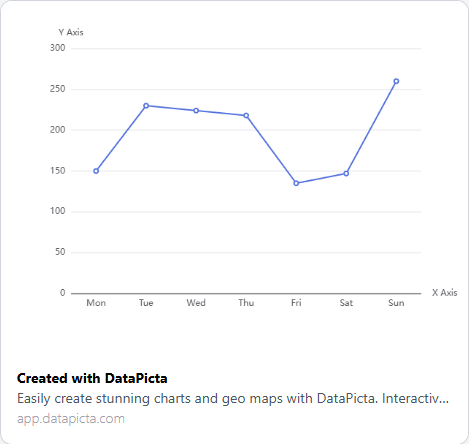
Discord